
CRM Data Migration: How to Avoid Losing Your Data
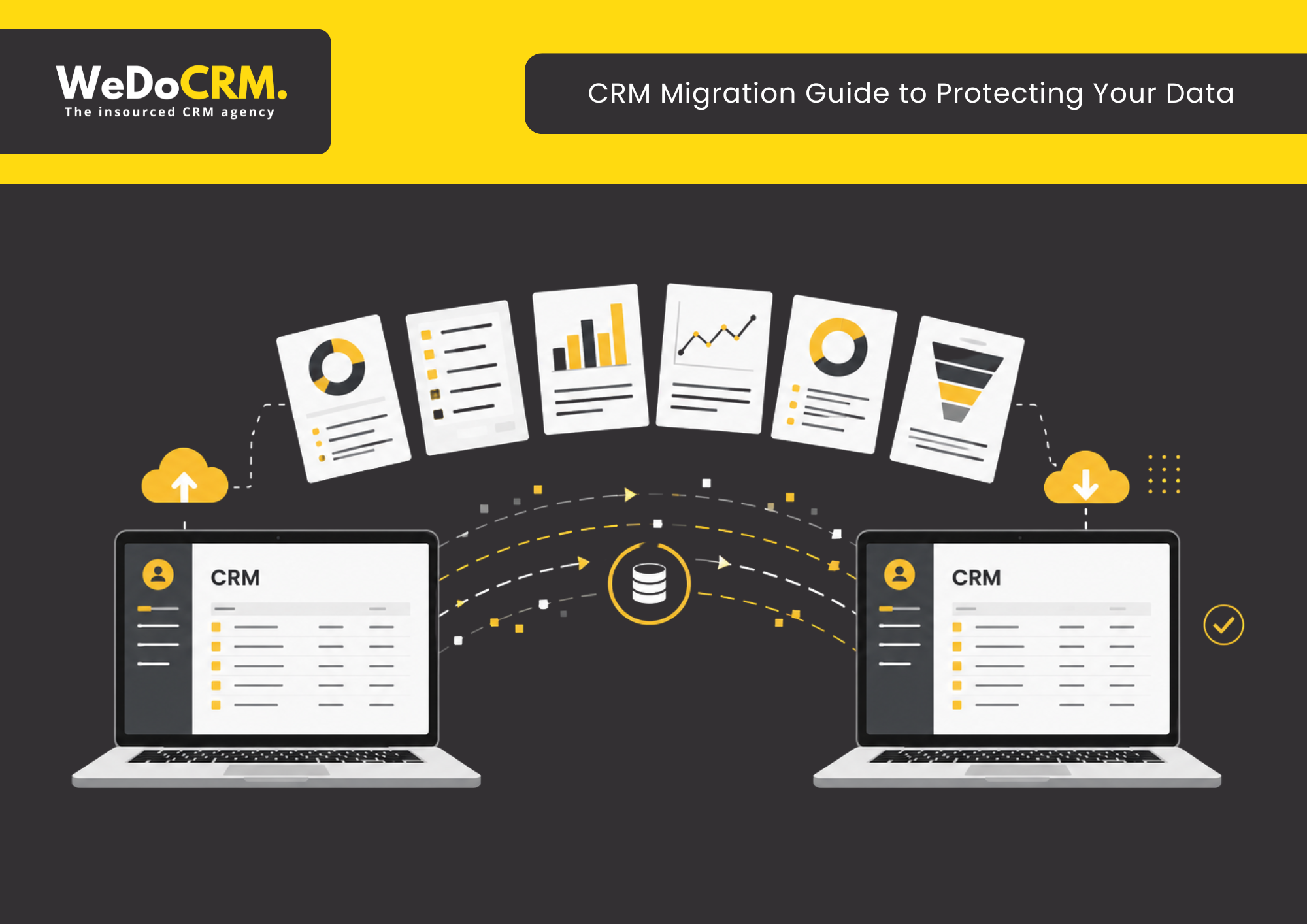
It’s time for a new CRM… better features, integrations, fit for where the business is going – great! Now comes the part nobody talks about in the sales demo: getting your data from A to B in a CRM data migration without losing anything that matters (even if the slides and videos were very, very pretty).
Most CRM migrations fail silently. Contacts vanish, deal histories disappear, automations break, and by the time you notice, you’ve already lost the pipeline.
The biggest fear is losing customer data, and it happens more often than you think.
To avoid losing data during a CRM migration, back up all your data before you start, count your records so you can verify nothing’s missing afterwards, test the migration with a small sample first, and keep your old CRM running for a few weeks as a safety net.
We go through the full process below and cover each step in detail:
- Back up all your data
- Count your contacts, companies, and deals
- Tidy up duplicates and old records
- Test with a small sample
- Run the full migration
- Check that your numbers match
- Monitor for a few weeks before switching off your old CRM
Why CRM Migrations Fail
❌ No pre-migration backup → unrecoverable data loss
❌ No record count baseline → you won’t know what’s missing
❌ Migrating dirty data → duplicates multiply, reporting breaks
❌ Cutting off old CRM too early → team loses access mid-problem
❌ No post-migration monitoring → issues surface weeks later, harder to fix
According to Gartner, poor data quality already costs organisations an average of $12.9 million per year. Every step in this guide is designed to make sure yours doesn’t add to that number, here’s how to avoid losing data and what to do if you already have.
Step 1: Make a Backup Before You Move Anything
A failed migration can set back your revenue operations by months, so this is the single most important step in this entire blog.
Export everything from your old CRM before you start. Export:
- All your contacts
- All your companies/accounts
- All your deals/opportunities
- Any notes or activity history (if your CRM allows it)
✅ Why this matters: if anything goes wrong during the migration and even small things sometimes do, this export is your safety net. You can always go back to it.
Step 2: Count Your Data First
Before you move anything, write down some simple numbers:
- How many contacts do you have?
- How many companies?
- How many deals?
You’ll find these numbers easily, most CRMs show them on a dashboard or in a list view.
✅ Why this matters: after the migration, you’ll check these same numbers in your new CRM platform. If they don’t roughly match, you’ll know something didn’t come across, and you can fix it early, before it becomes a bigger problem.
Step 3: Tidy Up Data Before You Migrate
If you have time, this step makes everything easier. A migration is not a magic wand, it amplifies whatever’s already in your system. Duplicate contacts become duplicate contacts in two systems. Junk fields become junk fields in a newer interface.
✅ Quick wins if you do have time:
- Delete obvious duplicate contacts (How many people are called John Smith!??!)
- Remove very old records you’ll never use again (e.g. contacts who left the company years ago)
- Delete any custom fields nobody has used in a long time
A smaller, cleaner list is much easier to check after migration than a huge, messy one. Every duplicate contact is a miscommunication waiting to happen!
If you’re not sure where to start, a CRM audit is a useful first step before migration; it gives you a clear picture of what’s worth bringing across and what isn’t.
Read our full guide on how to run a CRM data audit and spot the issues quietly hurting your reporting, campaigns, and customer experience.
Step 4: Do a Small Test First
Don’t move everything at once on day one. Instead:
- Export a small sample of your data, say, 20 to 50 contacts
- Import just that sample into your new CRM
- Check it carefully:
- Are names, emails, and phone numbers in the right fields?
- Did any information end up in the wrong place?
- Are deal values and stages correct?
If the small batch looks right, you’re in good shape to do the full migration. If something’s off, it’s much easier to fix the formatting on 50 records than on 5,000.
Step 5: Run the Full Migration
Once your test batch looks good, import the rest of your data using the same method.
✅ A few simple tips:
- Don’t rush it. Large imports can take time to process. Let it finish fully before checking the results.
- Import contacts and companies first, then deals, this usually helps the new CRM link everything together correctly.
- Keep your old CRM switched on. Don’t cancel your old subscription or delete anything yet. Keep it active for at least a few weeks as a safety net.
Step 6: Check Your Numbers Again
Go back to the numbers you wrote down in Step 2. Now check your new CRM platform:
- Does the contact count roughly match?
- Does the deal count roughly match?
- Open up a handful of records you know well, do they look right? Right email, right phone number, right deal value?
If the numbers are close (migrations often lose a small handful of records due to formatting issues, that’s normal), that’s good. If a large chunk is missing, move to the next section.
What’s the Biggest Cause of Data Loss in a CRM Migration?
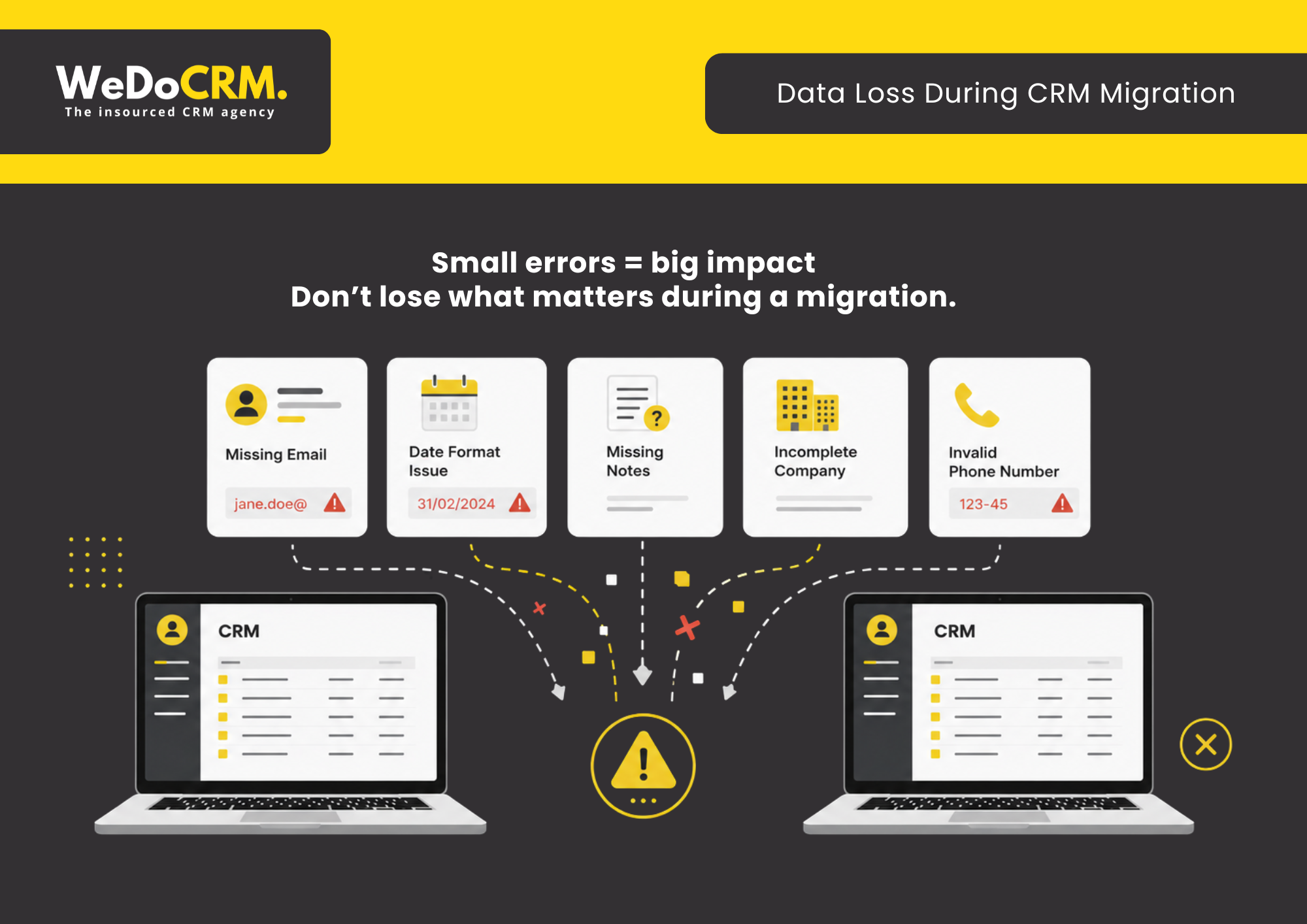
Most data loss comes down to small formatting issues, like a missing email address or a date in the wrong format, which causes the import to skip that record, or “mapping” errors where a column of data lands in the wrong field in the new system. Both are usually fixable if you have a backup, which is exactly why Step 1 matters so much.
First, don’t panic. This is more common than people think, and it’s almost always easy to fix.
If only a few records are missing
This usually happens because of small formatting issues — like a missing email address, or a date in the wrong format, which causes the import to skip that record.
✅ What to do:
- Go back to your original export file (from Step 1)
- Compare it against your new CRM to spot which records didn’t come across
- Many CRMs will give you an “import error log” or “failed rows” report when you do an import – check this first, as it usually tells you exactly which records didn’t make it and why
- Fix the issue in your export file (e.g. add the missing email, fix the date format) and re-import just those records
If a large chunk of data is missing
This is more serious, but your backup from Step 1 means nothing is actually lost -it just hasn’t been imported correctly yet.
✅ What to do:
- Don’t try to re-import everything again straight away, as this can create duplicates
- Check whether the import actually completed, or stopped partway through (large imports sometimes time out or fail silently)
- Try importing in smaller batches (e.g. 500 records at a time instead of all 5,000) — this often succeeds where one giant import fails
If data has gone into the wrong fields (e.g. names in the email field)
This is usually a “mapping” issue. When importing, most CRMs ask you to match your spreadsheet columns to fields in the new system, and a column gets matched to the wrong thing.
✅ What to do:
- Check whether you can undo or delete the import (many CRMs let you undo a recent import in one click)
- If you can undo it, fix the mapping and re-import
- If you can’t undo it, you may need to fix the data directly in the new CRM, or delete the affected records and re-import correctly from your backup file
If you’re really stuck
Two things will make this much less stressful:
- Your backup file from Step 1 means you always have a clean copy of your original data to start over from
- Your old CRM is still running (because you didn’t cancel it, see Step 5), so your team can keep working from there while you sort out the new system
This is exactly why those two steps matter so much. They turn a stressful situation into an inconvenient one.
If you’ve got to this point and you’d rather hand the rest over to specialists, that’s exactly what we do. See our CRM & ESP Migration service for how we step in. (We would love to meet you!)
→ CRM & ESP Service – How WeDoCRM Can Help You
Step 7: Keep an Eye on Things After Migration
For the first few weeks after migration:
- Check that the new contacts and deals your team adds are saving correctly
- Check that any tools connected to your CRM (like your email platform or website forms) are still working and sending data through
- Ask your team to flag anything that looks off, they’ll often spot small issues before you do
Once everything looks stable for a few weeks, that’s your sign that it’s safe to switch off your old CRM for good.
The Things That Get Overlooked in a CRM Migration
- Integrations
- Permissions and visibility
- Automations and workflows
- Historical reporting
These points cover the key areas to check during a CRM migration: ensuring all integrations still work, reviewing and tightening user access, rebuilding and testing automations, and preparing for any loss of historical reporting data.
WeDoCRM’s Top Tips: During the Migration
Migrations are our bread and butter, we run these projects week in, week out, across Salesforce, HubSpot, Customer.io, Iterable, Dotdigital, and more. Here’s what experience has taught us matters most once a migration is actually underway.
You can see our partners and what platforms we have migrated to and from below.
→ Platforms WeDoCRM Recommends
| Top Tip | What It Means | Why It Matters |
| Never migrate live – use a staging environment | Run a full test migration in a sandbox before touching your live system | Catch errors early, avoid breaking data in production, and reduce go-live risk |
| Keep the old system live – don’t cut it off early | Run both CRMs in parallel for 2–4 weeks post-migration | Gives you a safety net to validate data, workflows, and reporting before fully switching |
| Freeze data entry (or control it tightly) | Pause updates during migration or track every change made | Prevents data mismatches and ensures nothing gets lost between systems |
Migration Tips For After You’ve Moved
Reconcile against your audit
Go back to those numbers from Step 2. Do the counts match? Are the right fields populated? Spot-check the records your team uses every day. Reconciliation is not optional – it’s the only way to know the migration actually worked.
Run a 30-day data quality check
The first month in a new CRM is when problems surface. Set up a weekly check-in in weeks one to four:
- Are new records being created correctly?
- Are integrations (forms, email tools, ad platforms) feeding data in as expected?
- Are any fields behaving unexpectedly?
Assign someone to own this. Issues caught in week one are easy to fix. Issues caught in month three are much harder.
Train before you go live – not after
Your team’s behaviour shapes data quality from day one. If they don’t know how the new system works, they’ll work around it, and those workarounds become your next data problem. Run training sessions before the go-live date, not as a response to problems.
What a Successful CRM Migration Looks Like
✅ All integrations tested and confirmed live
✅ Team trained before go-live, not after
✅ 30-day monitoring plan in place
✅ Old CRM decommissioned only after sign-off
Proof A Migration Can Be Done – Even on Tight Timelines
If all of this sounds like it takes forever, it doesn’t have to. When GoHenry’s 8-week ESP migration needed to move from Salesforce Marketing Cloud to Customer.io, the brief was to do it in just 8 weeks across UK and US audiences, with complex parent-child account structures, multiple communication channels, and zero disruption to families relying on the service.
→ GoHenry’s 8-Week ESP Migration from Salesforce to Customer.io
It was completed on time, with deliverability performance matched to their previous platform and a fully upskilled in-house team left running the new system afterwards. It’s proof that with the right preparation, the same preparation outlined in this guide, a migration doesn’t have to mean months of disruption or a long tail of data problems.
For a fuller checklist version of everything above, see our CRM Migration Checklist for Success.
→ Download our free CRM migration checklist to track every step
Ready to Migrate Your CRM Without Losing Customer Data?
CRM migration isn’t just a technical task, it’s a data protection exercise. Your customer data is one of your most valuable assets, and without the right structure, planning, and validation, it’s at risk.
Most businesses don’t lose data because of the platform, they lose it because of poor processes. No clear mapping, no proper backups, no testing. That’s where the real risk sits.
If you’re planning a migration (or worried about what could go wrong), now is the time to get it right. We help businesses move CRM platforms without losing data, breaking journeys, or disrupting growth.
Book a free discovery call with WeDoCRM, and we’ll show you exactly where your risks are and how to eliminate them. We look forward to hearing from you!
FAQs – Protecting Data with CRM Migration
What is CRM data migration?
CRM data migration is the process of moving your contacts, companies, deals, and related records from one CRM platform to another, while keeping that data accurate, complete, and usable in the new system.
What data should I export before a CRM migration?
Export your contacts, companies/accounts, deals/opportunities, and any notes or activity history your CRM allows. This export is your safety net, if anything goes wrong during the migration, you can always go back to it.
How long does a CRM migration usually take?
Most migrations take anywhere from a few weeks to a few months, depending on data size and complexity. WeDoCRM has completed full ESP migrations, including complex multi-channel setups, in as little as 8 weeks.
What’s the biggest cause of data loss in a CRM migration?
Formatting issues, like missing fields or incorrect date formats, cause records to be skipped on import. Mapping errors, where data lands in the wrong field, are the other common culprit. Both are fixable if you have a backup.
Do I need to back up my data before migrating?
Yes, always. A full export of your contacts, companies, deals, and activity history before you start is the single most important step. It’s your safety net for everything else in this guide.
Can I migrate my CRM myself without an agency?
Yes, many businesses do, especially with smaller datasets. The key is testing with a small batch first, keeping a backup, and leaving your old system live as a safety net. Larger or more complex migrations benefit from specialist support.
What should I do if my import doesn’t fully complete?
Don’t re-run the full import – this creates duplicates. Check whether it timed out partway through, then import in smaller batches (500 records at a time rather than all at once). Most failed imports succeed when broken into smaller chunks.
How long should I keep my old CRM running after migrating?
At least two to four weeks in parallel with the new system. This gives you time to spot and fix issues without disrupting your team’s day-to-day work. Only decommission it once everything has been signed off.
How do I know if my CRM migration was successful?
Compare your contact, company, and deal counts against your pre-migration baseline from Step 2. Then spot-check records your team uses daily, correct emails, phone numbers, and deal values are the clearest sign that everything came across cleanly.
How much does a CRM migration cost?
It depends on data volume, complexity, and whether you use an agency. Simple self-managed migrations can cost very little beyond staff time. Agency-led projects for mid-size businesses typically range from a few thousand pounds upwards. WeDoCRM offers a free discovery call to scope your specific needs.
Can I migrate my CRM without downtime?
Yes, with the right approach. Running your old and new CRM in parallel during the transition means your team keeps working uninterrupted. The key is freezing or carefully managing data entry during the migration window to avoid synchronisation issues.
How do I migrate from HubSpot to Salesforce (or Salesforce to HubSpot)?
Both platforms support CSV exports and imports, but the field structures differ significantly – deal stages, contact properties, and custom fields all need careful mapping. A test migration with 50 records first is essential. WeDoCRM specialises in HubSpot and Salesforce migrations and can manage the full process.
Want more of our insights? Check out:
- Make Your CRM Budget Work Harder This Financial Year – Tips from our CEO
- Why Businesses Are Exploring Alternative CRM Platforms – What CRM Platform is best for you?
- Email Marketing Trends – Find out about the latest trends